vCard QR code business card: share a contact in one scan
A vCard code carries a small text file instead of a link. When it is scanned, the phone reads your name, number, email and company and offers to save them as a contact — no typing, no spelling mistakes, no follow-up email asking who just called. Here is how to build one that survives contact with a real phone.
Open the contact card generator
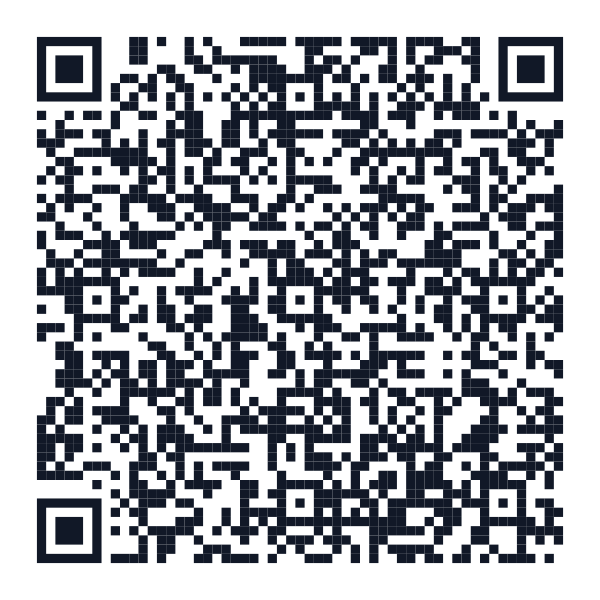
What a contact code holds
The code contains a vCard: a short block of plain text that starts with BEGIN:VCARD and ends with END:VCARD. Each line is one field, and the phone turns those lines into a contact entry. The version used by most phones is 3.0, which is what the generator writes.
| Line | What it becomes |
|---|---|
FN: | Full name, the one shown at the top of the contact. |
N: | Name split into family and given parts, used for sorting. |
ORG: / TITLE: | Company and job title. |
TEL;TYPE=CELL: | Phone number, in international format. |
EMAIL: | Email address. |
URL: | Website or booking page. |
ADR: | Street address, split into the parts the phone expects. |
NOTE: | A free line: opening hours, a note about how you met. |
Make the code in five steps
- Open the contact card generator.
- Fill in only what you would put on the front of a card. Name, company, one phone, one email and a website is a complete vCard; eight fields make the code denser and the contact messier.
- Write the phone number with the country code, for example
+971 50 123 4567. A local-only number is useless to a client who scans it from another country. - Check the line of text the generator shows. Your name appears twice — once in
FNand once split inN— and a mismatch there saves the contact with the wrong sort name. - Download the SVG for the printer and keep a PNG for email signatures and slide decks.
The catch to know before you print
A vCard code is static. Your job title, your number and your address are inside the picture, and nothing can change them afterwards. If you are promoted, move office or change number, the cards in circulation keep handing out the old details.
Two honest ways to handle that. Print the code on the back of the card and keep the front for branding that lasts longer, so a replacement run is cheap. Or put the code on a page you control — a link code to your contact page — and let the vCard download from there. The second option can be edited forever, but needs a data connection at the moment of the handshake, which is exactly when a conference wifi fails.
Printing it on a card
- At least 2.5 cm across, and 3 cm if the card will be scanned in a dim restaurant. Below that, guests angle their phone and give up.
- Matte card stock. A spot-UV or glossy laminate over the code is the most common reason a beautiful card will not scan.
- Clear white margin. Do not let the bleed or a border touch the squares.
- Keep the text too. Name, phone and email printed normally, so the card still works when a phone does not.
- Say what it does. "Scan to save my contact" removes the guesswork and doubles the number of people who try.
What the guest actually sees
On an iPhone, the Camera app recognises a vCard and shows a banner such as Add Contact; tapping it opens a filled contact card with a Save button. On Android, recent versions show the contact details and ask which account to save to. Scanner apps sometimes show the raw text instead, which looks alarming but is not an error.
A photo is not included unless you upload one, and most people should not: a photo multiplies the amount of data, the code becomes dense, and the contact gets a low-resolution logo as its avatar.
Privacy and spam
- Anyone who sees the code can read your number and email — with a free scanner app, without scanning properly. Do not put a personal mobile on a public poster if that worries you.
- Use a work number. A code on 1,000 cards should not hand out the line your family calls.
- Skip your home address. A city and country is enough for a card; a full street address in a code is a gift to anyone who photographs it.
- Expect some spam. A business email in a printed code will eventually be collected. A separate address for printed material keeps your inbox usable.
Mistakes worth avoiding
- Commas and semicolons in the wrong place. In a vCard,
N:separates family and given names with a semicolon. Put them in the wrong order and the contact saves as "Morgan Alex" reversed. - Arabic names in the wrong field. Put the Arabic spelling in
FNas well, so the phone shows it in Arabic rather than only in Latin letters. - Too many fields. Three phone numbers, two emails and a fax number produce a dense code and a contact nobody tidies up.
- Testing on one phone. iPhones and Android phones treat the same vCard slightly differently; check both before a print run.
- A code smaller than your logo. If the design makes the code decorative, it will not be scanned.
Frequently asked questions
What is a vCard QR code business card?
It is a code that carries your details in vCard format, so a scan offers to save your name, phone, email and company straight into the phone's address book - no typing, no app and no watermark.
Can the code include my photo or logo?
It can, but it should not. An image multiplies the data, makes the code dense and tiny, and adds little: the contact still needs your name in text.
Does the scan work offline?
Yes. A vCard is read from the picture itself, so it works in a basement or on a plane. That is one real advantage over a link to your contact page.
Can I update the details after printing?
No. A static code cannot be edited, so a new number means a new print run. Keep the design file, and print on a stock you can reorder cheaply.
Read next: Google Maps QR code: send people to the pin — Send guests straight to your pin, with directions already loaded.